Most people log in to a dozen accounts before breakfast without a second thought. Email, exchange, wallet, social media - all guarded by a single password. That's the problem. Passwords get stolen in data breaches, phished out of you by convincing fake login pages, or simply guessed by automated tools running millions of combinations per second. Knowing how to set up 2FA - two-factor authentication - is the single most impactful security upgrade most crypto users will ever make, and it takes less than five minutes.
⚡ Key Takeaways
- Passwords alone are no longer a sufficient defense against account compromise
- 2FA adds a second verification layer that attackers can't easily replicate
- Authenticator apps are significantly safer than SMS-based codes
- Recovery codes must be saved offline before you need them - not after
- Most major platforms, including crypto exchanges, support 2FA setup in under five minutes
What Is Two-Factor Authentication (2FA)?
At its core, authentication is the process of proving you are who you claim to be. A "factor" is a category of evidence - and security systems classify all authentication methods into three categories:
- Something you know - a password, PIN, or answer to a security question
- Something you have - an authenticator app, hardware security key, or phone
- Something you are - a biometric like a fingerprint, Face ID, or voice pattern
Two-factor authentication combines any two of these categories in the same login. The critical word is categories - using two passwords doesn't qualify, because both belong to "something you know." An attacker who compromises your knowledge factor still needs to break through a completely different type of challenge. Understanding your crypto wallet security is the first step; enabling 2FA is the second.
2FA is the most widespread form of multi-factor authentication (MFA). The distinction matters: MFA is the broader category and can include three or more factors - something crypto exchanges and high-security environments often require. For most users, well-implemented 2FA is already a dramatic security upgrade.
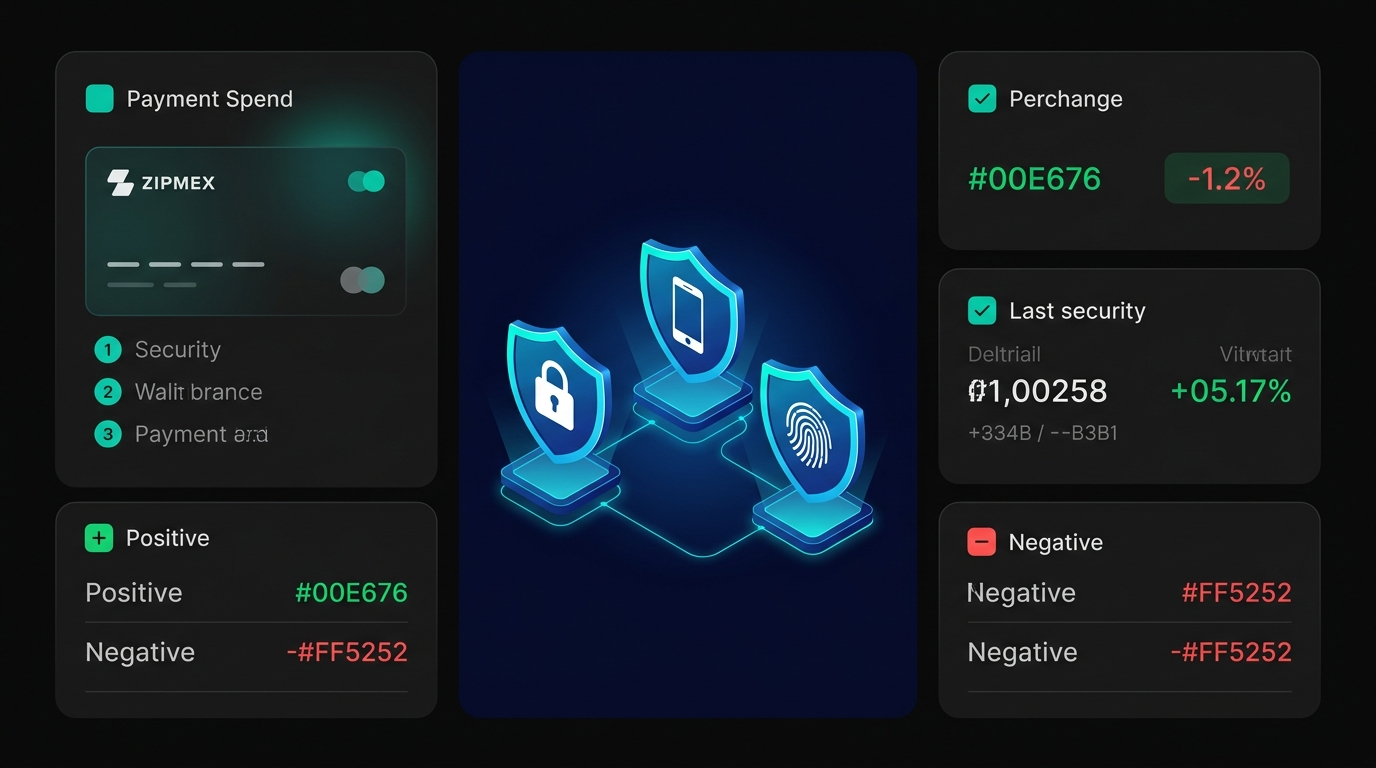
The Three Types of Authentication Factors Explained
Understanding the categories helps you make smarter decisions about which 2FA method actually protects you:
- Knowledge factors - the weakest category in isolation. Passwords can be leaked in breaches, guessed by software, or extracted by phishing. Any single knowledge factor should be treated as potentially compromised.
- Possession factors - significantly stronger, because an attacker needs physical or digital access to your specific device. A TOTP code from an authenticator app expires in 30 seconds and is tied to your device's cryptographic secret.
- Inherence factors - biometrics are convenient and increasingly common, but they're device-dependent and can be spoofed with sophisticated attacks. They work best as one layer within a broader security stack.
The security comes from combination. Gaining access to one factor still leaves an attacker one category short.
The 4 Most Common 2FA Methods (Ranked by Security)
Not all 2FA is equal. This is probably the most important thing to understand before you enable it - because choosing the wrong method can give you false confidence while leaving a critical vulnerability open.
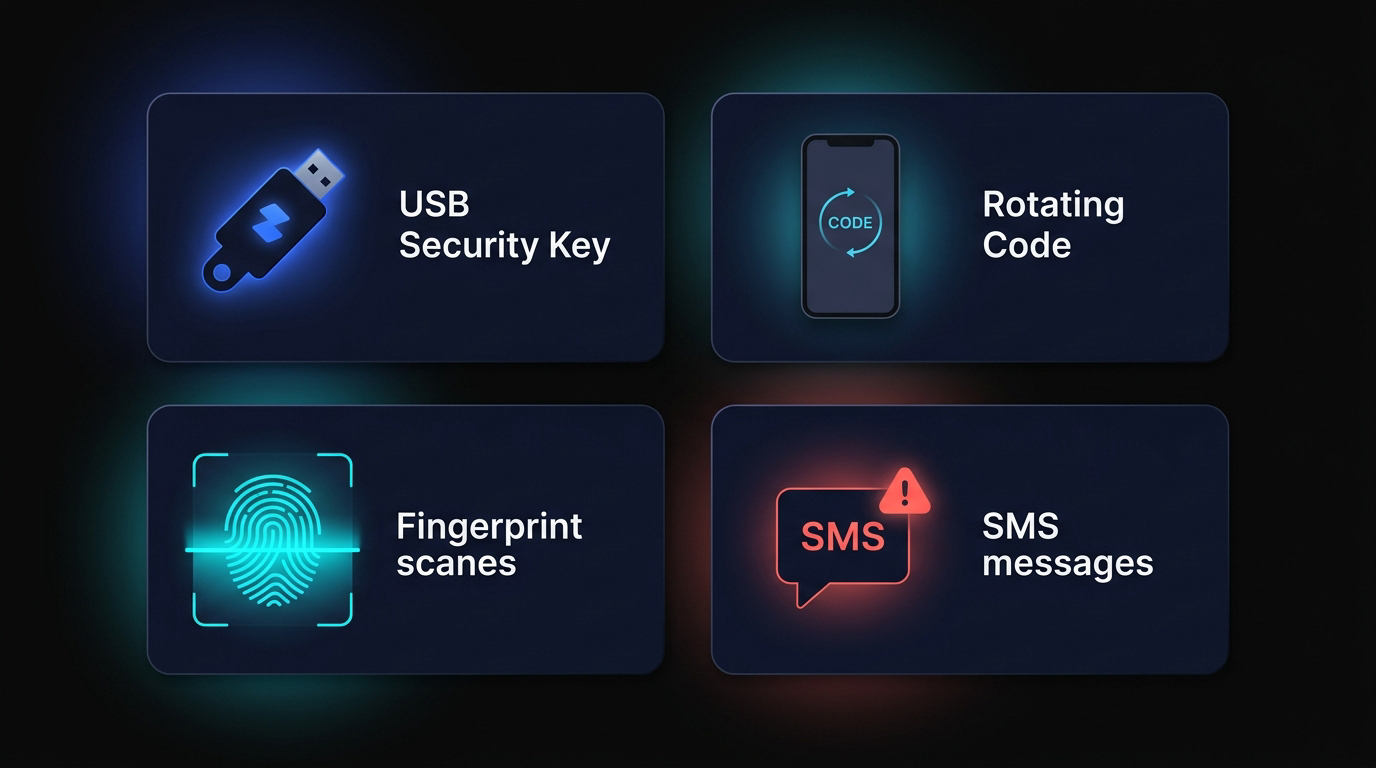
1. Hardware Security Keys (most secure) - Physical devices like YubiKey or Google Titan plug into your USB port or tap via NFC. They use FIDO2/U2F cryptographic protocols that are natively phishing-resistant: even if you're tricked onto a fake login page, the key won't authenticate against it. Hardware keys require physical possession, survive phone loss or replacement, and don't depend on software or battery life. The YubiKey 5 Series starts from $58 - a one-time cost that covers the most critical accounts indefinitely.
2. Authenticator Apps (strong, widely recommended) - Apps like Google Authenticator, Microsoft Authenticator, and Authy generate TOTP codes - time-based six-digit codes that rotate every 30 seconds. The code is computed locally on your device using a shared cryptographic secret, with no network communication required during generation. Strong protection against remote attacks; the main risk is device loss.
3. Passkeys / Biometric 2FA (emerging, excellent UX) - The FIDO Alliance's passkey standard is rapidly gaining adoption. Passkeys use on-device biometrics (Face ID, fingerprint) to authenticate via a cryptographic key pair - no code entry required. Phishing-resistant by design, highly convenient, and increasingly supported across major platforms.
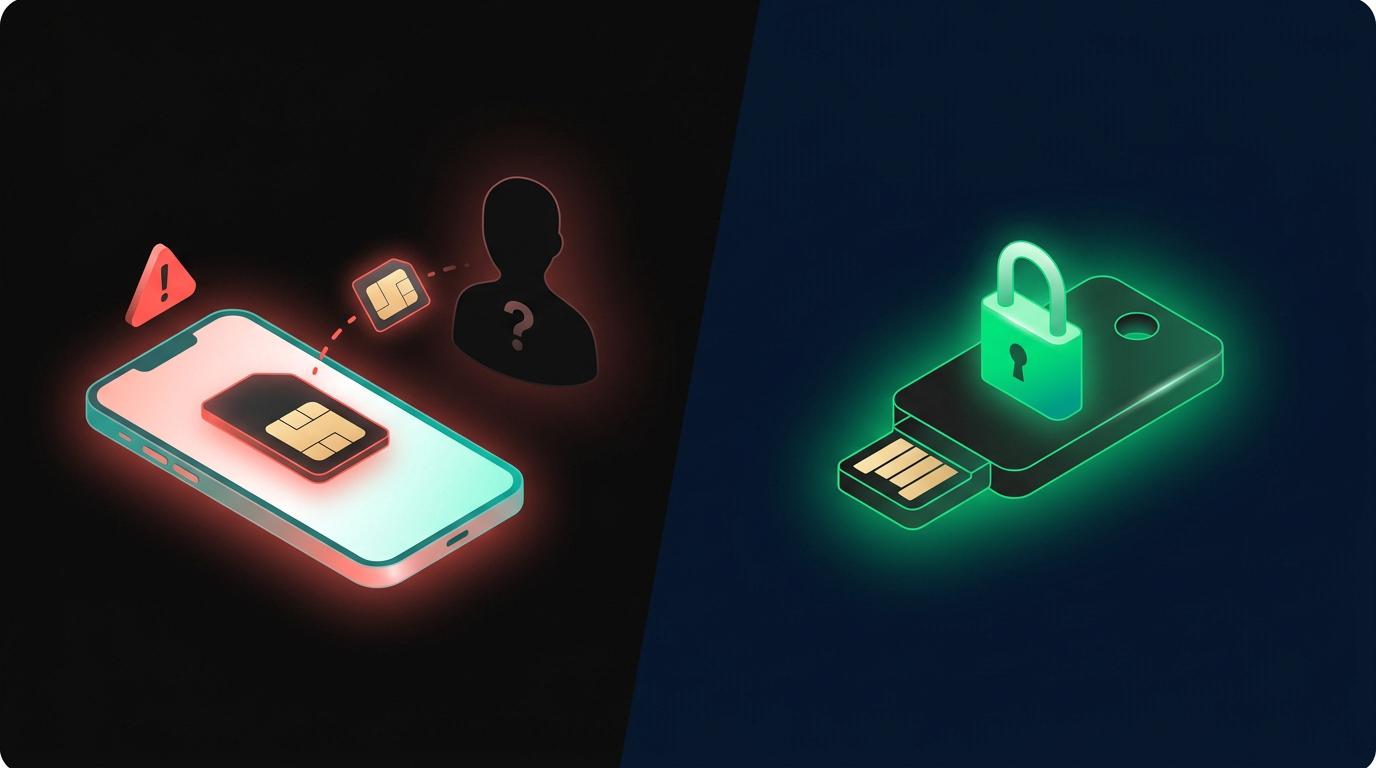
4. SMS / Text Message 2FA (weakest - avoid where possible) - An authentication code sent to your registered phone number. NIST SP 800-63B-4, published July 2026, formally classifies SMS/PSTN one-time passcodes as a "restricted authenticator" - the only method in that category - due to structural vulnerabilities including SIM swapping, SS7 protocol attacks, and real-time phishing interception.
2FA Method Comparison Table
*Device-dependent security level. Note: NIST SP 800-63B-4 classifies SMS as a restricted authenticator - replace it with an authenticator app wherever possible.
How to Set Up 2FA - Step-by-Step for Major Platforms
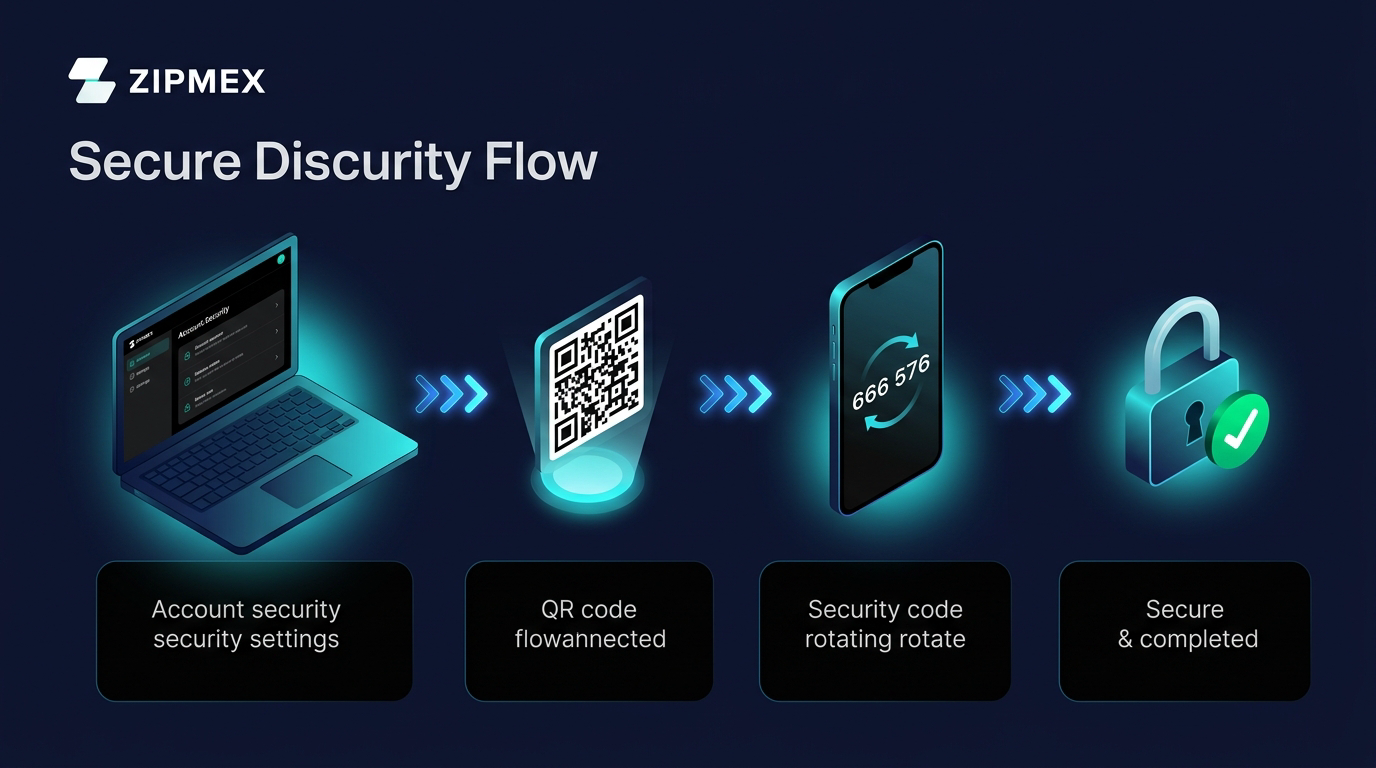
How to set up 2FA follows a consistent process across almost every platform, once you know the pattern. The specific menu labels differ, but the underlying flow is identical. This same process applies whether you're securing an email account or a crypto exchange holding real funds.
⚠ Don't close this window yet
- Recovery codes are only shown once. → If you lose them and lose your authenticator device simultaneously, recovery becomes extremely difficult - or impossible depending on the platform.
Setting Up 2FA on a Crypto Exchange (Kraken Example)
Crypto exchange accounts require the same core process, but exchanges often add platform-specific security layers that most general guides overlook. Kraken is a good example because its 2FA implementation has a critical nuance that trips up even experienced users.
Here's the complete setup process:
How to Choose the Right 2FA Method for Your Needs
Setup is mechanical. Choosing the right method requires actually thinking about your risk profile - specifically, what you stand to lose if an account is compromised and how frequently you access it. Just as securing a crypto wallet demands matching your storage solution to your holdings, 2FA demands matching your authentication method to your threat exposure.
Three dimensions matter most:
- Security level required - a casual social media account needs different protection than a crypto exchange holding significant funds
- Convenience vs. protection trade-off - hardware keys offer the strongest protection but add a physical step; authenticator apps balance strong security with practical usability
- Device ecosystem - if you switch phones frequently, a cloud-synced solution like Authy has advantages; if you're device-stable and security-first, local-only storage reduces your attack surface
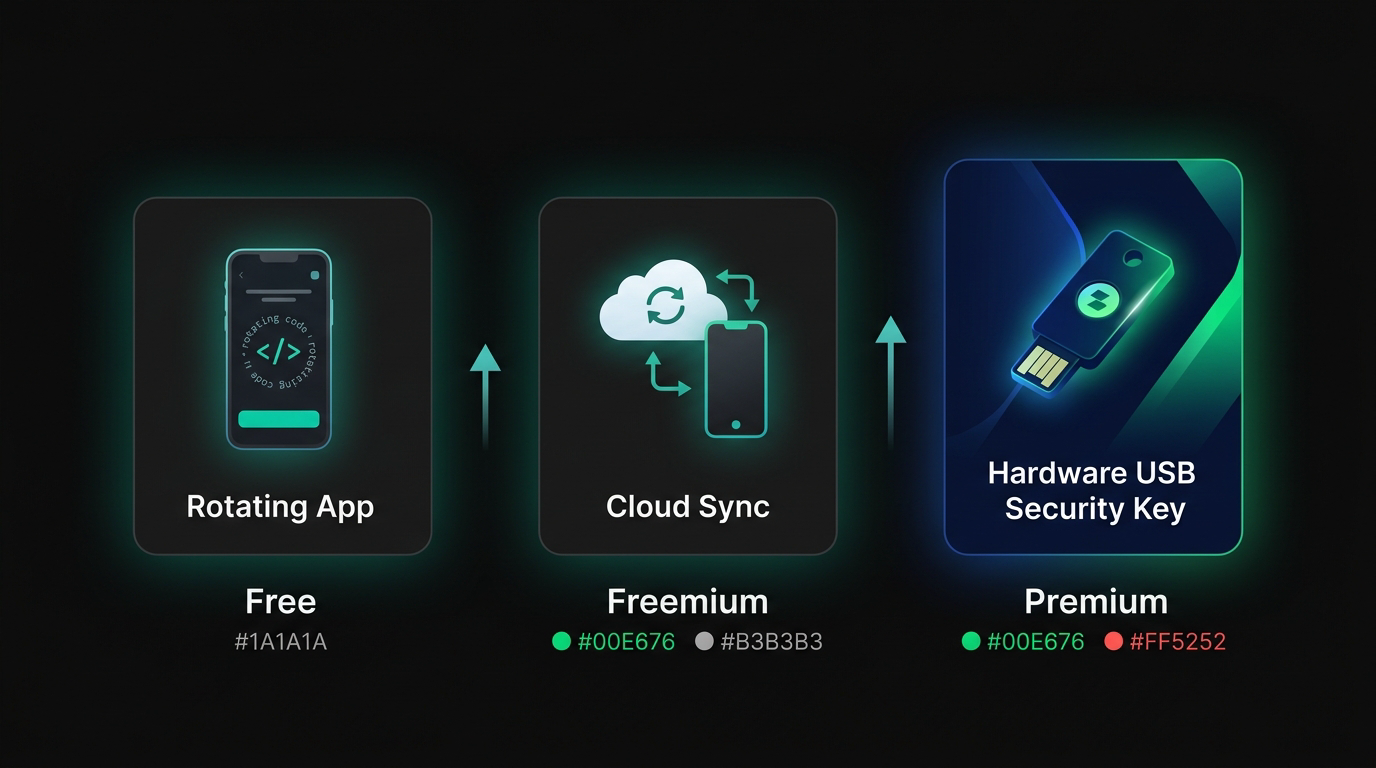
Free App vs. Paid App vs. Hardware Key - Which Fits Your Profile?
The business model behind each option shapes what you're actually getting:
Authy's encrypted cloud backup deserves a specific note: it's a genuine convenience feature, but it means your 2FA secrets exist in a cloud service - which a sufficiently motivated attacker might target. For any account with significant financial exposure, local-only authenticator apps or hardware keys are the cleaner choice.
2FA Red Flags and Security Mistakes to Avoid
Enabling 2FA is the right move. But I've seen users set it up incorrectly in ways that leave serious gaps - sometimes worse than having no 2FA at all, because it creates false confidence.
⚠ The Most Common 2FA Mistakes
- Using SMS as your sole 2FA method → for any account worth protecting, this isn't enough. SIM swapping is a real, documented attack that bypasses SMS 2FA entirely.
- Not saving recovery codes → the most common path to permanent lockout. Platforms don't guarantee account recovery if you lose both your authenticator device and your recovery codes.
- Storing recovery codes on the same device as your authenticator app → if the device is lost or stolen, an attacker has both your 2FA generator and your bypass codes simultaneously.
- No device lock on your primary phone → if your unlocked phone contains your authenticator app, physical access to the phone equals full account access.
- Real-time phishing pages → sophisticated attacks capture your password and 2FA code simultaneously, relaying them to the real site within the 30-second validity window.
The SIM Swapping Attack - How It Works and How to Stop It
SIM swapping is worth understanding in detail, because it completely neutralizes SMS 2FA without touching your phone. Here's how a typical attack unfolds:
SIM SWAP ATTACK - HOW IT UNFOLDS
Step 1 - Research
Attacker collects personal information (name, address, last four of SSN) from data breaches or social media.
Step 2 - Contact carrier
Attacker calls your mobile carrier's customer service, impersonates you using collected details, or in some cases bribes an employee.
Step 3 - Number transferred
The carrier moves your phone number to a SIM card the attacker controls.
Step 4 - All SMS intercepted
Every SMS - including 2FA codes, account reset texts, and OTP messages - now routes to the attacker's device.
Step 5 - Account compromised
Attacker triggers a password reset, receives the SMS code, enters it, and gains full account access. Your phone is never touched.
Prevention is straightforward: remove SMS 2FA from critical accounts and add a carrier-level PIN or account lock through your mobile provider. Some carriers offer port-freeze settings as additional protection. For any account with significant financial exposure, the answer is clear - switch to an authenticator app or hardware key and remove SMS 2FA entirely.
How to Recover Access If You Lose Your 2FA Device
Losing your authenticator device doesn't have to mean losing account access - but only if you prepared correctly. Here's the recovery process in priority order:
- Use your saved recovery codes - every platform that implements 2FA generates a set of backup codes during setup. These are one-time-use codes that bypass your normal 2FA check. If you saved them, you can log in, then immediately reconfigure 2FA on a new device.
- Use a secondary trusted device - if you used Authy with multi-device sync enabled, your authenticator codes are accessible on any other device linked to your account. This is one of Authy's genuine advantages over local-only apps.
- Contact platform support - recovery difficulty varies dramatically by platform. Some restore access after identity verification within hours; others treat account security as absolute and offer no recovery path without backup codes. Don't assume support will save you.
- Set up 2FA fresh on a new device - once access is restored, reconfigure 2FA from scratch and immediately save new recovery codes.
📊 Where to Store Recovery Codes
Store recovery codes in a reputable password manager (1Password, Bitwarden) with a separate master password, or as a printed physical copy in a secure location. Never store them in your email inbox, cloud notes, or on the same device running your authenticator app. If the device is stolen, a co-located backup codes file hands the attacker everything they need to bypass your 2FA entirely.
2FA vs. Other Account Security Methods - What Works Best Together
2FA isn't a complete security strategy - it's one essential layer in a broader stack. The accounts most vulnerable to compromise aren't those that lack 2FA; they're those that treat 2FA as sufficient by itself. The same layered thinking that makes self-custodial on-chain platforms more secure than custodial alternatives applies here: no single point of failure, and every layer independently verifiable.
The optimal security combination depends on your threat model, but a practical layered approach looks like this:
Password Manager + 2FA is the baseline recommended combination for crypto-active users. A password manager generates and stores unique, complex passwords for every account - eliminating credential reuse attacks entirely. 2FA then handles the second layer independently.
Passkeys represent the likely next evolution: a single authentication step that combines device possession and biometrics into a phishing-resistant FIDO2 credential. Several major platforms already support passkeys as a full replacement for password + 2FA. NIST SP 800-63B-4, finalized in July 2026, explicitly incorporates passkeys and syncable authenticators into the updated Digital Identity Guidelines - a formal signal that the standard is production-ready.
Biometric authentication as a device lock adds an inherence layer: even if someone steals your phone with your authenticator app, they can't access it without your fingerprint or face. It's a meaningful security addition that costs nothing extra.
Conclusion - Start With 2FA Today
The honest summary: 2FA is one of the most effective security measures you can implement, and most people still haven't done it. Not because it's hard - it isn't - but because nothing bad has happened yet.
Real-world account compromises consistently show the same pattern: attackers go for the easiest target. An account with a strong password and authenticator app 2FA is rarely worth the effort when millions of SMS-only accounts exist. Defense doesn't have to be perfect. It has to be better than the next target.
The key decisions, summarized:
- Authenticator app is the right default for most users - secure, free, and works on any device
- Hardware security key is the right choice for any account with significant financial exposure, including crypto exchange accounts
- Never rely solely on SMS 2FA - it's better than nothing, but not by enough margin to justify the false confidence
- Save your recovery codes immediately - offline, on paper or in an encrypted vault, away from the authenticator device
The direction the industry is heading is clear: passkeys and hardware-backed cryptographic authentication are gradually replacing shared secrets like passwords and SMS codes. The principle behind self-custodial platforms - where cryptographic verification replaces trust in intermediaries - applies equally to how you secure your accounts. You're not trusting a carrier, a support agent, or a server. You're trusting math.
Take five minutes today. Enable 2FA on your most critical accounts. Save the recovery codes. That's the entire playbook.
Last updated: March 2026.
Crypto trading and on-chain activities involve substantial risk of loss. This article is for informational and security education purposes only and does not constitute financial advice.
Frequently Asked Questions
What does 2FA stand for?
2FA stands for two-factor authentication - a security method that requires two separate types of verification before granting access to an account. The "two factors" refer to two different categories of evidence: typically something you know (a password) combined with something you have (an authenticator app or hardware key). Unlike using two passwords, which are both "knowledge factors," genuine two-factor authentication requires verification across fundamentally different categories, making unauthorized access significantly harder even for attackers who have already stolen your password.
How does two-factor authentication work?
When you log in to an account with 2FA enabled, the first factor - usually your password - passes you to a second authentication challenge. If you're using an authenticator app, you open the app and enter the six-digit TOTP code currently displayed. This code is generated locally on your device using a cryptographic secret established during 2FA setup, and it expires every 30 seconds. Because the code is time-sensitive and tied to your specific device's secret, an attacker who knows only your password cannot complete the second step without physical or digital access to your authenticator device.
Is SMS two-factor authentication safe?
SMS 2FA is better than no 2FA, but it's the weakest option available and shouldn't be used as a standalone protection for high-value accounts. NIST SP 800-63B-4 formally classifies SMS/PSTN one-time passcodes as a "restricted authenticator" - the only method in that category. The core vulnerability is SIM swapping: an attacker convinces your mobile carrier to transfer your number to their SIM, at which point all your 2FA codes route directly to them. For crypto and financial accounts, replace SMS 2FA with an authenticator app as the minimum viable alternative.
What is the safest 2FA method available?
Hardware security keys - devices like the YubiKey 5 Series (from $58) or Google Titan - offer the highest available protection. They implement the FIDO2/U2F standard, which uses public-key cryptography rather than shared secrets. Critically, hardware keys are natively phishing-resistant: even if you're directed to a convincing fake login page, the key performs a cryptographic challenge tied to the legitimate domain and won't authenticate against an impersonator. For any account holding significant value - particularly crypto exchange accounts - a hardware key is worth the one-time investment.
What should I do if I lose my phone with my authenticator app on it?
Act methodically rather than in a panic. First, check whether you saved recovery codes during 2FA setup - if you did, log in using a recovery code, then immediately reconfigure 2FA on a replacement device. If you used Authy with multi-device sync, your codes may be accessible on another linked device. If neither applies, contact the platform's support team - recovery processes vary significantly, with some platforms offering identity verification and others offering no recovery path at all without backup codes. Going forward: save recovery codes during every new 2FA setup, before you ever need them.
What are recovery codes and where should I store them?
Recovery codes are one-time backup passwords generated when you first set up 2FA on an account. Each code works exactly once and bypasses your normal 2FA requirement, allowing you to log in and reconfigure your authentication settings if you've lost your primary 2FA device. Most platforms generate 8-10 codes per account. Store them in a reputable password manager (1Password, Bitwarden, KeePass) with a separate master password, or as a printed physical copy in a secure location. Never store them in email, cloud notes, or on the same device running your authenticator app - that defeats their entire purpose.
What is the Global Settings Lock (GSL) on Kraken and why does it matter?
The Global Settings Lock is a Kraken-specific security feature that prevents any changes to your account settings - including your 2FA configuration - without completing an additional verification step. Without GSL enabled, an attacker who gains access to your account can simply disable or change your Funding 2FA, then proceed to withdraw funds without the protection you configured. With GSL active, even a fully compromised login session can't modify your security settings without passing the GSL challenge. Enable it together with Funding 2FA during initial setup - enabling Funding 2FA without GSL leaves a critical gap in the protection chain.